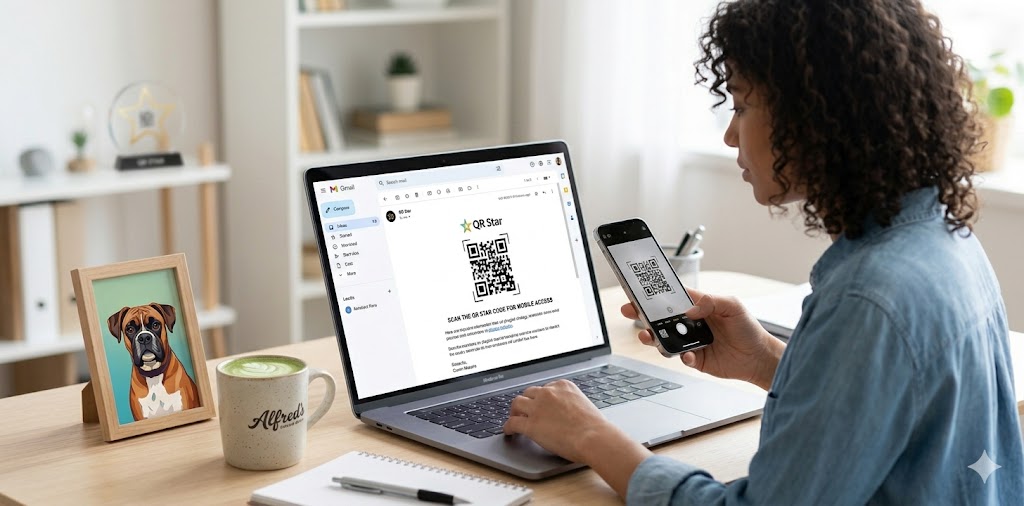
In a world where we constantly jump between screens, the transition from a desktop email to a mobile action can often be a point of friction. QR codes offer a seamless “phygital” bridge, allowing users to move from reading an email on their laptop to interacting with your brand on their smartphone in seconds.
Whether you are using Mailchimp or another ESP, integrating QR codes into your email strategy can significantly boost engagement for app downloads, event registrations, or mobile-exclusive offers.
Why Use QR Codes in Your Emails?
Most users check email on multiple devices. If a subscriber sees a promotion on their desktop but the action requires a mobile-specific app (like an AR filter or a localized map), they might lose interest before they can switch devices. A QR code removes that hurdle.
1. Identify the Objective
Before generating your code, define the “Mobile Moment.” Common use cases include:
- App Store Downloads: Directing users to the iOS or Android store.
- Event Check-ins: Providing a digital ticket or a map to a venue.
- SMS Subscriptions: Creating a “Scan to Text” trigger for loyalty programs.
- Contactless Payments: Linking directly to a checkout page for a quick purchase.
2. Design for Scannability and Style
A QR code doesn’t have to be a boring black-and-white box. However, it must remain functional.
- Contrast is King: Ensure the code is dark enough against its background. If you use brand colors, keep the contrast ratio high.
- The “Quiet Zone”: Always leave a small margin of white space around the code to help scanners identify it.
- CTA is Essential: Never post a “naked” QR code. Always include a clear call-to-action like “Scan to Download” or “Scan for Your Mobile Discount.”
3. Technical Implementation in mail server
To ensure your code looks sharp on all devices, follow these steps:
- Generate a High-Resolution PNG: Use a tool like QR Star to create a high-quality image file.
- Host the Image: Upload it to your Mailchimp Content Studio.
- The Alt-Text Alternative: Since some email clients block images by default, always include a text link below the QR code as a fallback.
- Size Matters: Ensure the image is large enough to be scanned (at least 150px squared within the email layout) but small enough not to overwhelm the design.
4. Testing Across Devices
The most critical step in email marketing is the “Test Send.”
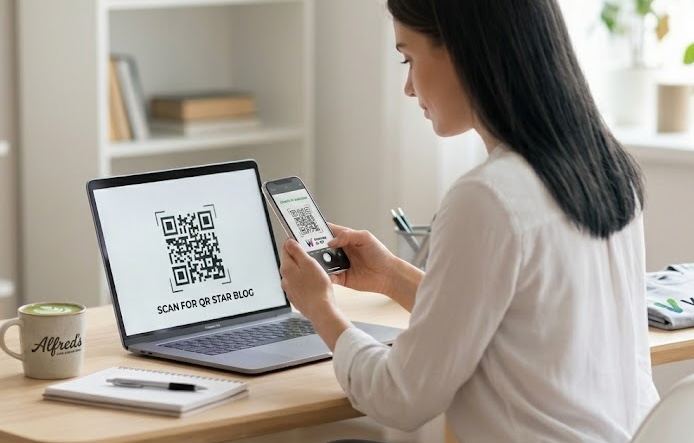
- Test Distance: Open the email on a desktop and try scanning it from a natural sitting distance.
- Test Dark Mode: Check if your QR code is still scannable when the email client flips to Dark Mode (this is why a white “quiet zone” border is vital).
- Test the Link: Ensure the destination page is 100% mobile-optimized.
Conclusion
By embedding QR codes into your Mailchimp campaigns, you aren’t just sending an email—you’re creating a cross-platform journey. It’s a simple technical addition that transforms a static message into an interactive experience.
Ready to try it out? Click HERE to sign up for QR Star!