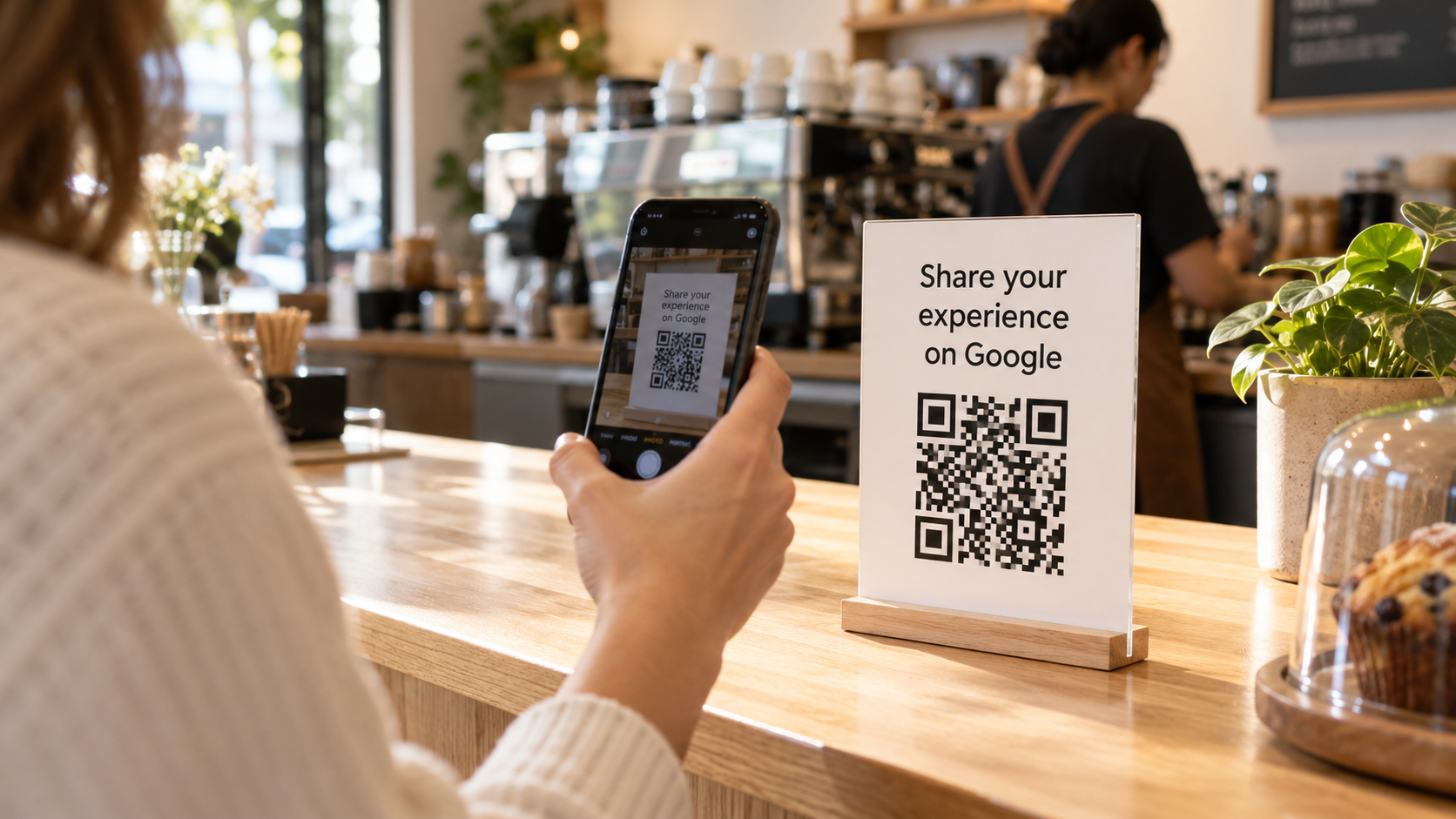
A customer has just enjoyed a meal, finished an appointment, or picked up an order. They’re willing to share their experience, but finding your business online is another task on their list. A QR code for Google reviews makes that next step easier. Customers scan it with their phone and follow a link to leave feedback on your Google Business Profile.
Here’s how to find your review link, create a branded code with QR Star, and put it to work.
What is a Google review QR code?
A Google review QR code contains a link that takes customers to the review flow for your business. It saves them from searching for your listing and checking that they’ve found the right location. If you want more control over the design, an editable destination, and scan analytics, you can use your Google review link to create a dynamic code with QR Star.
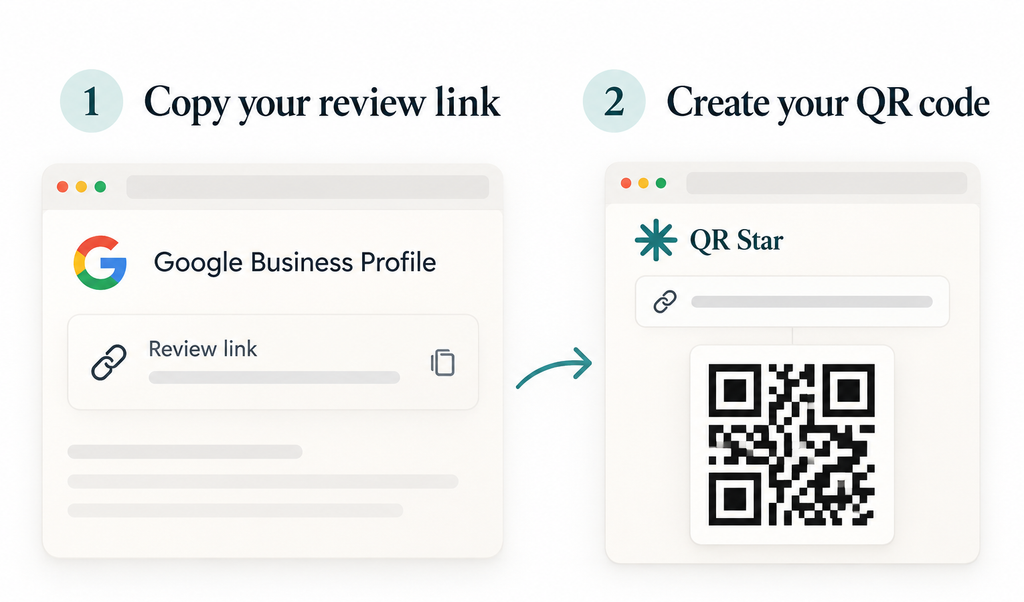
Step 1: Find your Google review link
Start with the Google account you use to manage your Business Profile.
- Open your Google Business Profile
- Select Read reviews, then Get more reviews
- Copy the review link
If you manage multiple locations, check that you’ve selected the correct business before copying the link. Each location should direct customers to its own review page. Open the link to confirm it leads to the right business. Customers will need to sign in to a Google account to submit a review, so seeing a sign-in prompt is normal.
Step 2: Create your code with QR Star
Once you have your link, sign in to QR Star and select New Code. Choose the link option and paste your Google review URL into the destination field. Give your code a descriptive name, such as “Google Reviews — Front Desk.” Naming codes by placement makes it easier to identify them later.
Next, customize the design. Add your business logo, choose colors that match your brand, and select your preferred pattern or frame. Keep the code easy to read: a dark foreground against a light background is a practical starting point. Create the code and download it in the format you need. QR Star offers PNG, JPG, and SVG downloads.
Because the destination is dynamic, you can update its URL later without changing the printed code. For example, if your review link changes, you can replace the destination while keeping your existing signage.
Step 3: Test and display your code
Before ordering signs or printing a stack of cards, scan your downloaded code with a phone. Then print a sample at its intended size and test it again. Check that it opens the correct review page and remains easy to scan in the lighting where customers will use it.
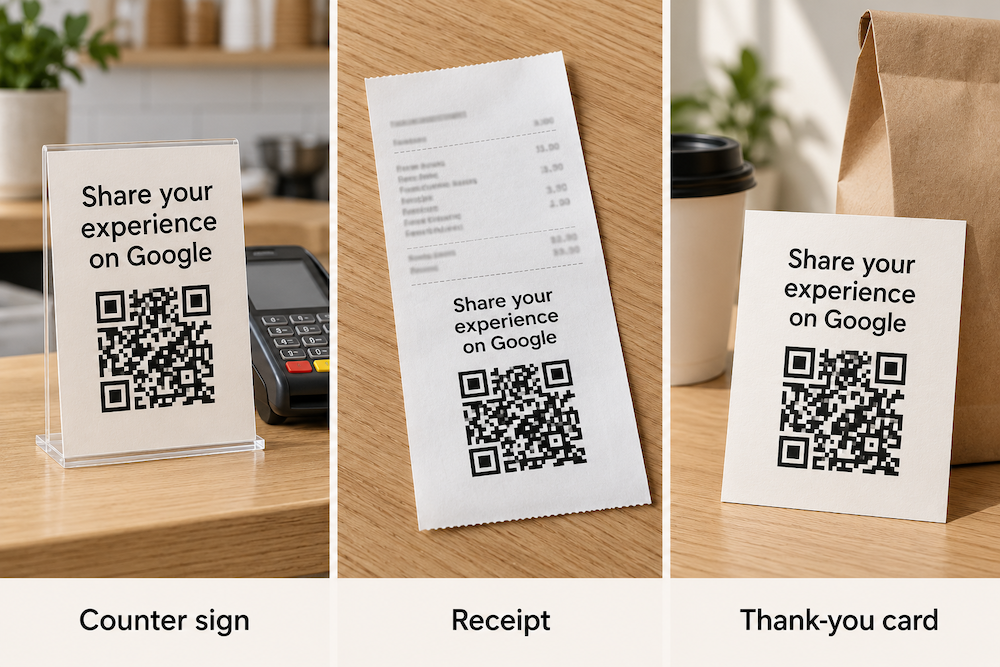
Good placements include:
- A small sign at checkout or reception
- A receipt or appointment card
- Takeaway packaging
- A thank-you card included with an order
Add a clear prompt, such as “Share your experience on Google.” Place the code somewhere customers can comfortably stop and use their phones.
Ask for honest feedback
A QR code works best alongside a simple, friendly request. After a customer interaction, let people know they can scan the code if they’d like to share their experience. Welcome honest feedback and avoid asking for a specific rating. Don’t offer discounts, gifts, or other incentives in exchange for reviews; Google prohibits incentivized reviews. Respond thoughtfully to the reviews you receive. Thank customers for their feedback and address concerns professionally.
If you use separate QR Star codes for different placements, compare their scan activity. Remember that a scan shows engagement with the code, not proof that someone submitted a review.
Make feedback easier to share
Start with one code in a useful location, test it, and give customers a clear invitation to share their experience. With QR Star, you can create a branded, trackable code for your Google review link and make requesting feedback part of your everyday customer experience.